How Long Should LinkedIn Articles Be
Published · By the RankedIn team
How Long Should LinkedIn Articles Be? The Short Answer
The question “how long should LinkedIn articles be” has no agreed answer. One ranking guide says LinkedIn favours scannable pieces of roughly 800 to 1,200 words. Another puts long-form articles at 1,900 to 2,000 words. Others argue that the content matters far more than the count. None of them gives strong evidence for its figure.
Our answer is to choose the length your topic needs, then make every one of those words easy to read on a phone. Length only hurts when it arrives as a wall of text. This guide covers that second part, the layout. For the word-count side, see our data-led look at LinkedIn article word count.
On maximum length, an older post says LinkedIn articles can run up to 40,000 characters. That post was written years ago, so check LinkedIn’s own help pages if you are anywhere near that limit. Most articles never get close to it.
For our own articles, RankedIn sets the target length from the average of the pages that already rank on Google for the term, kept between 1,200 and 3,000 words. We publish long pieces often, and most of what we have learned is about formatting them.
What Is a LinkedIn Article, and When to Choose It Over a Post
A LinkedIn article is a long-form piece written in LinkedIn’s article editor. It has a title, a cover image and headings, and it gets its own address under linkedin.com/pulse. A post is the short update that appears in the feed.
Neither format is better in general. They do different jobs:
- Choose a post for a quick thought, a question, a piece of news or a short story aimed at people who already follow you.
- Choose an article when the subject needs sections, steps or examples, or when you want people to find it later through a Google search for a specific question.
The search point is not theoretical. In our own keyword research (23 October 2026, Google United States), a linkedin.com/pulse article was in the live top 10 for 13 of 17 searches about ranking or indexing LinkedIn articles. Posts and articles also work well together: publish the article, then write a short feed post that announces it. We explain how Google treats each format in our guide to posts versus articles versus newsletters.
Why a Long Article Gets Skipped on a Phone
One of the ranking guides says nearly 70% of LinkedIn users access the platform on mobile devices (Sim Wan Yong’s article on formatting LinkedIn articles). The exact share may vary, but many of your readers will be on a small screen, between tasks, and will decide within seconds whether to keep reading.
On a phone, a 2,000-word article with no structure turns into one long grey scroll. The reader cannot see where the answer is, how much is left, or whether the next screen is worth reading. The same 2,000 words with clear headings, short paragraphs and a few lists feel shorter, because the reader can jump straight to the part they came for.
Readers who arrive from search are even less patient. Someone who clicked through from Google has a specific question. If the answer is not visible near the top, and the headings do not show where the rest of it is, they go back to the results.
Headings That Carry a Long Article
Headings are the map of a long article. In LinkedIn’s editor, use the built-in Heading and Subheading styles. Avoid bold text or larger fonts pasted in from elsewhere. The native styles look consistent with the rest of LinkedIn, and they give the page a real heading structure that both readers and search engines can follow.
Make each heading a promise
A heading like “The Problem” tells the reader nothing. One ranking guide offers a better example: “Why 80% of Training Programs Fail”, which tells the reader exactly what the section delivers. Aim for headings that someone could read on their own, in order, and still follow the article’s argument.
Break often enough to give rest stops
There is no official rule. A good habit is to start a new Heading whenever the reader’s question changes, and add a Subheading when a section has two or three distinct parts. If a section runs for several phone screens without a break, split it.
Keep the hierarchy simple
Two levels are enough for most articles: Heading for main sections, Subheading for the parts within them. Only use a Subheading to mark a part of a section, not because you like its size.
This is how RankedIn articles reach LinkedIn. Our Chrome extension fills in the article using LinkedIn’s own Heading and Subheading styles, so the structure is native rather than imitated.
Short Paragraphs, Lists and Rhythm
After headings, paragraph length is the biggest lever you have. Some practical rules:
- Break any paragraph that runs longer than about four lines on a phone.
- Vary the length: a one-line statement, then a few sentences that explain it, then back to something short.
- When a sentence lists three or more items, turn it into bullets.
- Bold a handful of key takeaways, not every other phrase.
Before and after
Before:
Before you publish you should check your headings because vague headings make readers leave, and you should also check your paragraphs, which should be short, and look for lists hiding in sentences, and make sure there is only one clear link so people know where to go next.
After: Before you publish, check four things:
- Each heading says what its section delivers.
- Paragraphs are short.
- Lists are bullets, not long sentences.
- There is one clear link to follow.
Both versions say much the same thing, but the second one can be scanned in a few seconds.
The Empty-Paragraph Bug in LinkedIn’s Editor
We found this problem while building RankedIn’s posting step, and none of the ranking pages mention it. When we pasted HTML into LinkedIn’s article editor with line breaks between the blocks, the editor turned those line breaks into empty paragraphs.
A 12-block article became 23 blocks, and 11 of them were empty.
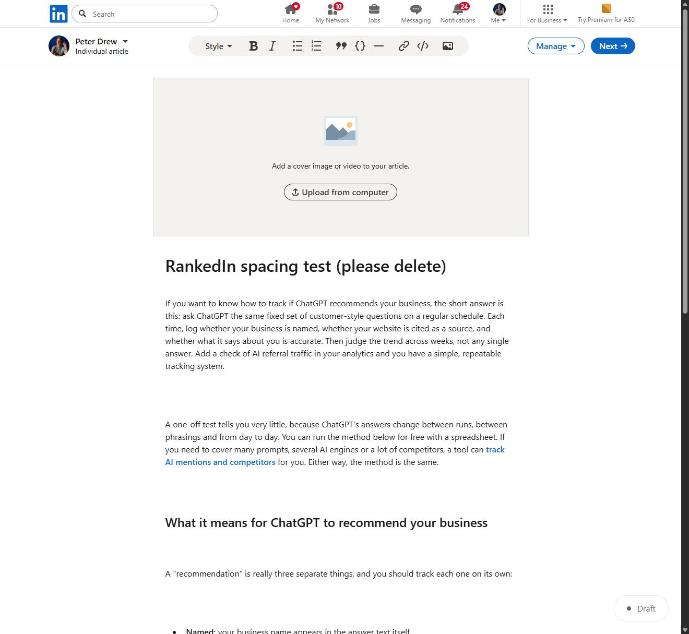
In a draft this can look harmless, but it reads badly. Every paragraph and heading gets a double gap, the article looks longer and thinner than it really is, and phone readers have to scroll further. A carefully structured piece ends up feeling padded.
How to spot it
- The gaps between paragraphs are clearly larger than in an article you typed by hand.
- Clicking in a gap puts the cursor on an empty line.
- Extra gaps appear above and below headings, not only between paragraphs.
How to Fix Spacing When Pasting Into the Editor
Our fix was to send compact HTML, with no line breaks between blocks. After that change, 12 blocks stayed 12.
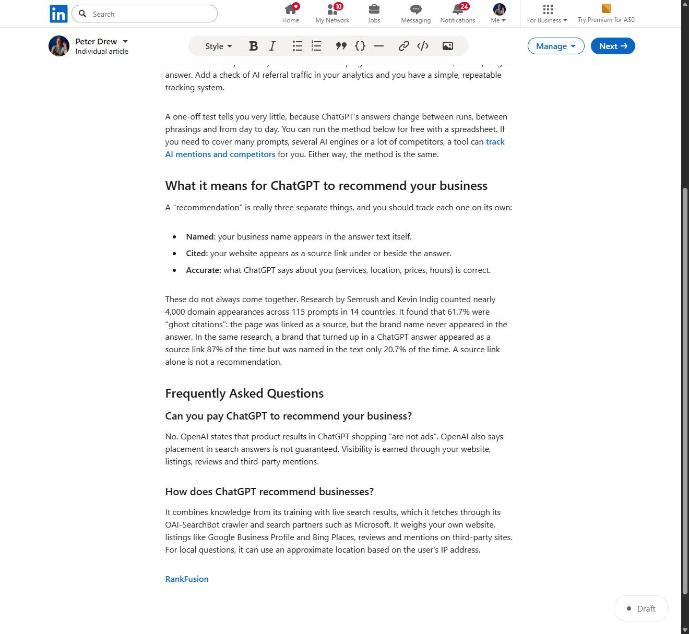
If you paste by hand, you can get the same result:
- Prepare your draft without blank lines between paragraphs.
- After pasting, scroll through and delete any empty lines between blocks.
- Compare the block count: the paragraphs, headings and lists in the editor should match your draft.
- Reapply headings with the editor’s own Heading and Subheading styles rather than relying on pasted formatting.
- Preview the article on your phone before publishing.
With RankedIn, the Chrome extension does the filling in. It opens LinkedIn’s article editor and adds the title, the article with native heading styles, the cover image and the search term as the cover caption. You still read it through and click Publish yourself. RankedIn never publishes for you.
A Pre-Publish Readability Check
- Phone scroll test. Open the draft on your phone and scroll quickly. Within a few seconds, can you tell the topic, the main points and why it matters?
- Answer near the top. For an article aimed at a search term, the first two short paragraphs should answer the question.
- Heading hierarchy. Main sections use Heading, parts within them use Subheading, and every heading makes a specific promise.
- Paragraph length. Nothing runs much past four lines on a phone.
- No empty paragraphs. The gaps look the same as in an article typed by hand.
- Lists where needed. Steps and sets of items are bullets or numbers, not long sentences.
- One clear link. The reader knows where to go next.
Worked example: “How to Rank a LinkedIn Article”
You can try this check on our own article, How to Rank a LinkedIn Article, which we wrote with RankedIn and published on 23 October 2026. It was posted with the extension, so its headings use LinkedIn’s native styles and the HTML was sent compact. That takes care of the mechanical checks: heading levels and empty paragraphs. The checks that still need a human are about the writing itself, such as whether the opening answers the question and whether each heading makes a clear promise.
Good formatting helps readers, but it does not guarantee a ranking. On 23 October 2026, that article had been submitted to PetesIndexer, indexing was still in progress, and it was not yet in Google’s top 100, which is normal that early. For the ranking side, see how to write LinkedIn articles that rank on Google.
Frequently asked questions
What is the maximum length of a LinkedIn article?
An older post states that LinkedIn articles can run up to 40,000 characters. That post was written years ago, so check LinkedIn’s help pages if you are close to the limit. Most articles are far shorter, and a more useful question is whether your article is easy to read on a phone.
How do I post a long form article on LinkedIn?
Open LinkedIn’s article editor using the option to write an article, then add a title, a cover image and your text, with the editor’s Heading and Subheading styles for sections. If you paste your draft, remove any blank lines between blocks so the editor does not add empty paragraphs. Preview the article on your phone, publish it, and then share a short feed post announcing it.
What are articles in LinkedIn?
Articles are long-form pieces with a title, a cover image and headings, and each one has its own linkedin.com/pulse address. Feed posts are short updates. Articles suit in-depth guides, and people can also find them through Google search.
Is it better to post an article or post on LinkedIn?
It depends on the job. A post works best for quick thoughts, questions and news aimed at your followers. An article works best for topics that need sections and steps, or that you want people to find later through search. Many people do both: they publish the article and announce it with a short post.
How long should LinkedIn articles be?
Sources disagree. One guide suggests roughly 800 to 1,200 words, another suggests 1,900 to 2,000 words for long-form articles, and others say the content matters more than the count. Choose the length your topic needs, then use clear headings, short paragraphs and lists so the article stays easy to read.