LinkedIn Article Generator
Published · Updated · By the RankedIn team
A good LinkedIn article generator does more than turn a topic into text. It should research what already ranks for your search term, write a long-form article (not a 25-word post), check its own facts, help you get it into LinkedIn's article editor cleanly, and tell you honestly whether Google has indexed it and where it ranks.
Most tools that show up for this search are post generators. They are useful for quick feed updates, but they are not built for articles that people find on Google. This guide explains the difference, compares the three main types of tools fairly, and gives you a checklist you can use on any of them, including ours.
What a LinkedIn Article Generator Actually Is (and Why Most Results Are Post Generators)
When we checked the top 9 Google results for this term in the United States, every one was a post tool: Hootsuite, Postiv AI, Grammarly, MagicPost, Typegrow, Supergrow, ContentStudio, RedactAI and LinkedIn Preview. None of them generates a full LinkedIn article.
The two formats do different jobs:
- Posts live in the feed. LinkedIn allows up to 3,000 characters, and Hootsuite notes that only about the first 140 characters show before "See More". Advice on length varies widely: Hootsuite suggests keeping updates to 25 words, while Grammarly suggests 150 to 1,500 words depending on the purpose.
- Articles are long-form pieces with a title, cover image and headings, published on their own linkedin.com/pulse address. That address can be found through Google search long after the feed has moved on.
Post or article? Use a post for quick news, opinions and conversation. Use an article when you want to fully answer a question that people type into Google. Many people do both: publish the article, then announce it with a short post.
Are LinkedIn Articles Still Worth Writing?
Yes, for the right searches. In our own keyword research (23 October 2026, Google United States), we looked at 17 searches about ranking or indexing LinkedIn articles. A linkedin.com/pulse article was in the live top 10 for 13 of them, and at number 1 for 4 (all four held by the same article, "Does Google index LinkedIn articles?" by Look Left Marketing).
Two honest caveats. Most of those searches are small, about 10 a month each ("linkedin article writer" is larger, at about 260 a month). And no tool can guarantee a ranking. We cover the evidence in more depth in our evidence-first answer on whether LinkedIn articles rank on Google.
The Three Types of Tools
1. Free post generators
Hootsuite, Grammarly, Typegrow and ContentStudio offer free generators: you type a topic, pick a tone and get a draft in seconds. ContentStudio says its tool has no usage cap and needs no account; Typegrow also needs no login. Hootsuite says its tool is powered by OpenAI's ChatGPT 3.5 and writes in five languages.
Good for: beating the blank page on a quick post. Limits: short outputs, no research, and no knowledge of your voice. Postiv AI says this plainly about its own free tool: "it does not know your writing style. Every post starts from zero."
2. Style-trained platforms
MagicPost, RedactAI, Supergrow and the paid Postiv AI platform learn from your past posts. RedactAI says it builds a profile from your last 100 posts; Supergrow stores each employee's "Content DNA" for team programmes. These platforms add scheduling, analytics and, in some cases, lead detection. MagicPost offers a free trial rather than a free plan; Supergrow offers a 7-day trial.
Good for: posting often in your own voice. Limits: they are still built around feed posts, not search-led articles.
3. Search-led article tools
These start from a Google search term, not a topic. They study the pages that already rank and write a full article meant to compete with them. RankedIn is in this group. Good for: being found on Google over time. Limits: slower to pay off than a feed post, and rankings are never guaranteed.
Where does ChatGPT fit? A general chatbot can write a decent draft if you give it good material, but on its own it is not built to do the whole job of researching Google's live results for your term, checking its claims against them, and formatting and posting the article for you. You do all of that yourself.
Real Research Versus Templates
Several of the free tools above describe a template-style structure such as a hook, short body and call to action. That suits posts. For an article meant to rank, the input should be what already ranks.
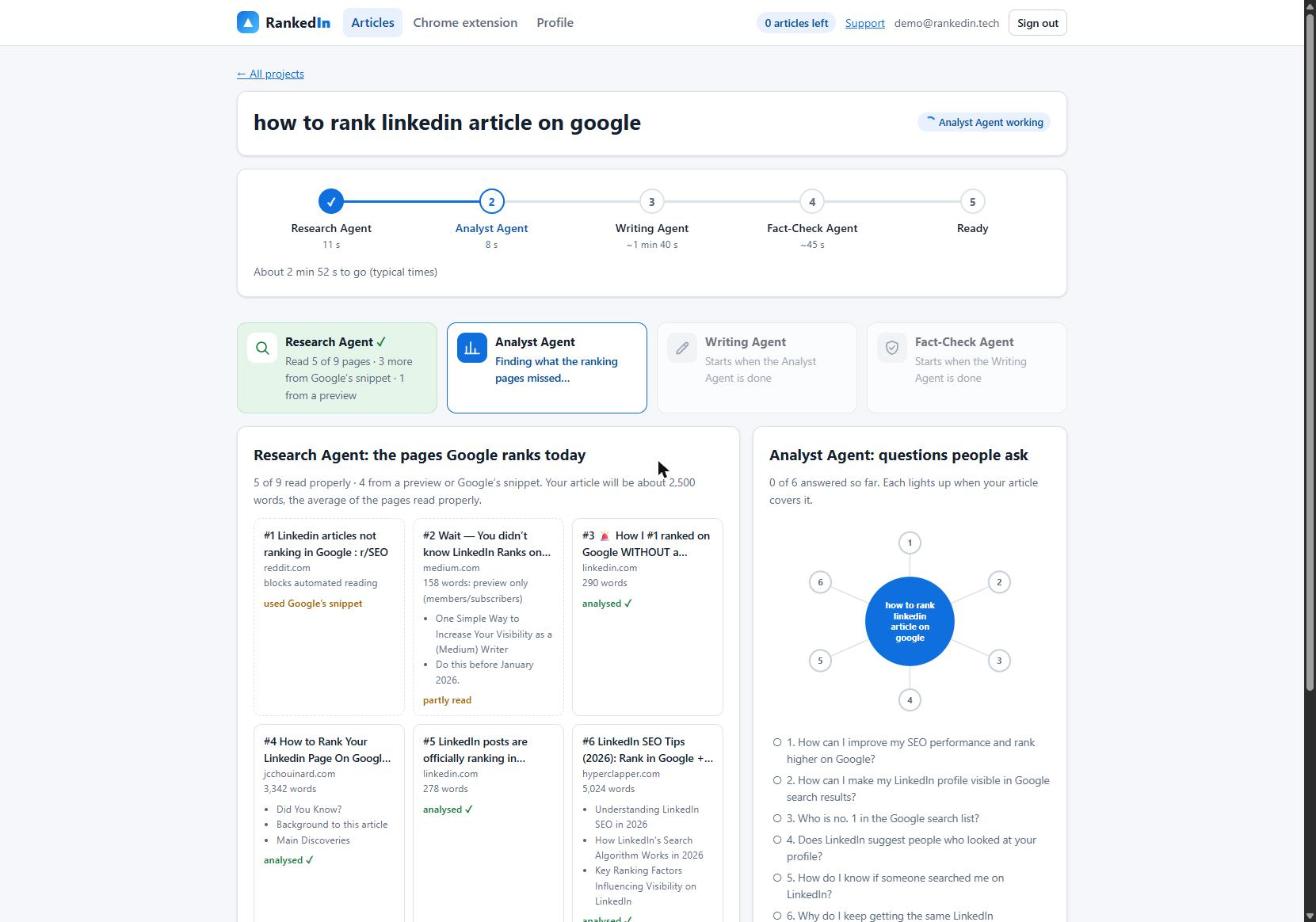
Here is how our Research Agent does it. It fetches Google's live top 10 for your term and reads every ranking page at the same time. Pages that block automated reading, such as Reddit, are covered with Google's own snippet. It then sets the target length from the average of the pages it read properly, kept between 1,200 and 3,000 words. Next, the Analyst Agent finds the gaps those pages miss, the People Also Ask questions to answer, and an outline.
When you compare tools, ask: what does this draft know that my one-line prompt did not?
Why Fact-Checking Matters in AI-Written Articles
Few of the ranking pages say how their output is checked for wrong claims. Hootsuite even warns that its tool "may display inaccurate or offensive material". For a long article that carries your name, this matters.
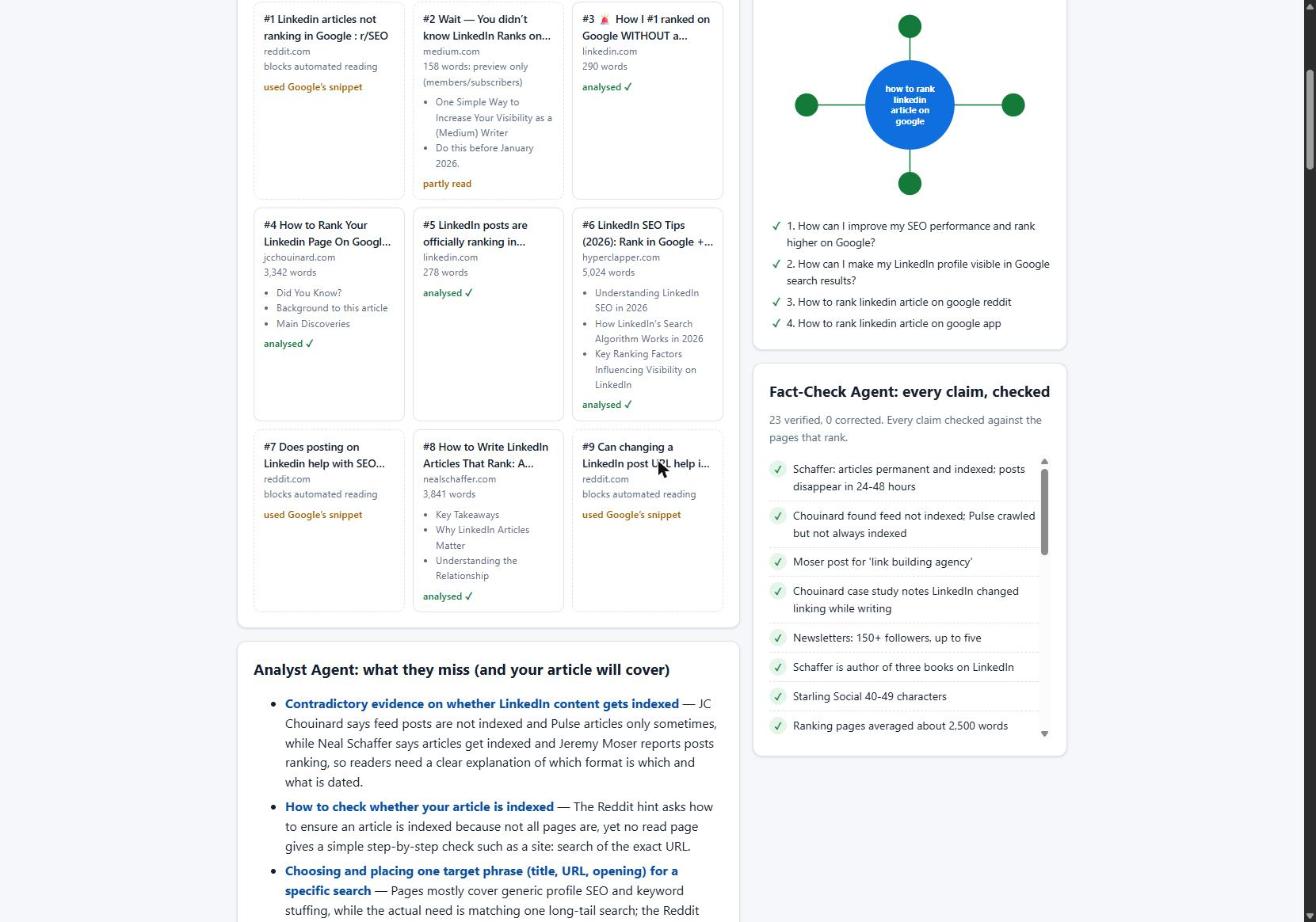
Our Fact-Check Agent lists up to 25 factual claims and checks each one against the research. It applies corrections only (it never rewrites the article), then re-checks the corrected sentences. If anything important is still wrong, the article is marked "Needs review" instead of "Ready". In a real run on 23 October 2026, it checked 23 claims and corrected 0.
It does not remove it. You should always read before you publish.
Posting Help: From Draft to Published LinkedIn Article
Most tools stop at a copy button. Copy and paste is where articles quietly break. We found that line breaks between blocks of pasted HTML made LinkedIn's editor insert empty paragraphs: a 12-block article became 23 blocks, 11 of them empty. Sending compact HTML fixed it, so 12 blocks stay 12.
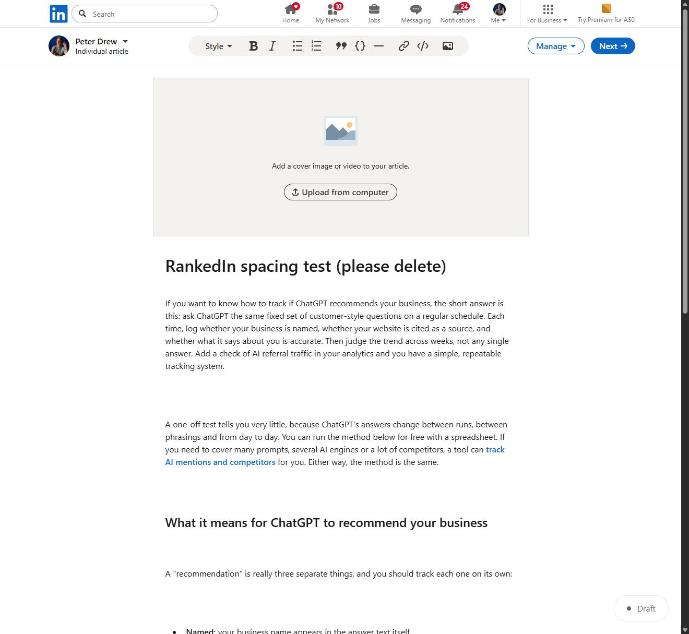
Our Chrome extension opens LinkedIn's article editor and fills in the title, the article (using LinkedIn's own Heading and Subheading styles), the cover image, the search term as the cover caption, your business details and, after you click "Next", the feed post that announces the article. You read it and click Publish yourself. RankedIn never publishes for you. Then X opens with a post ready, linking to the article, and you click Post.
Indexing: What Happens After You Publish
After you publish, the LinkedIn article link and the X post link are sent together to PetesIndexer, the indexing service we use. We only show a link as indexed when PetesIndexer confirms Google has indexed it; until then, it says "Submitted, indexing in progress". If a link is not indexed, it is sent again once automatically. Indexing is not guaranteed. Our guide to how LinkedIn articles get indexed explains how to check yours.
To see where it shows up, use the Test Now link next to the project in RankedIn: it opens that exact Google search in the project’s country.
To be transparent: our own four articles published on 23 October 2026, including How to Rank a LinkedIn Article, were still "indexing in progress" and not in Google's top 100 that day. That is expected so early.
A Worked Example: One Article in Under Two Minutes
On 23 October 2026 we ran the term "how to rank linkedin article on google" for Google United States. The inputs were the search term, the Google country, an optional "Link to" page (by default, your website) and an optional cover image (otherwise RankedIn designs a title card).
- Research Agent: 11 seconds. Read 5 of 9 ranking pages properly, 3 more from Google's snippet and 1 from a preview. Target about 2,500 words.
- Analyst Agent: 15 seconds. 6 gaps, 4 questions.
- Writing Agent: 1 minute 13 seconds. 2,608 words, with the exact term as the title, one link to the "Link to" page and an FAQ from People Also Ask.
- Fact-Check Agent: 11 seconds. 23 claims checked, 0 corrected.
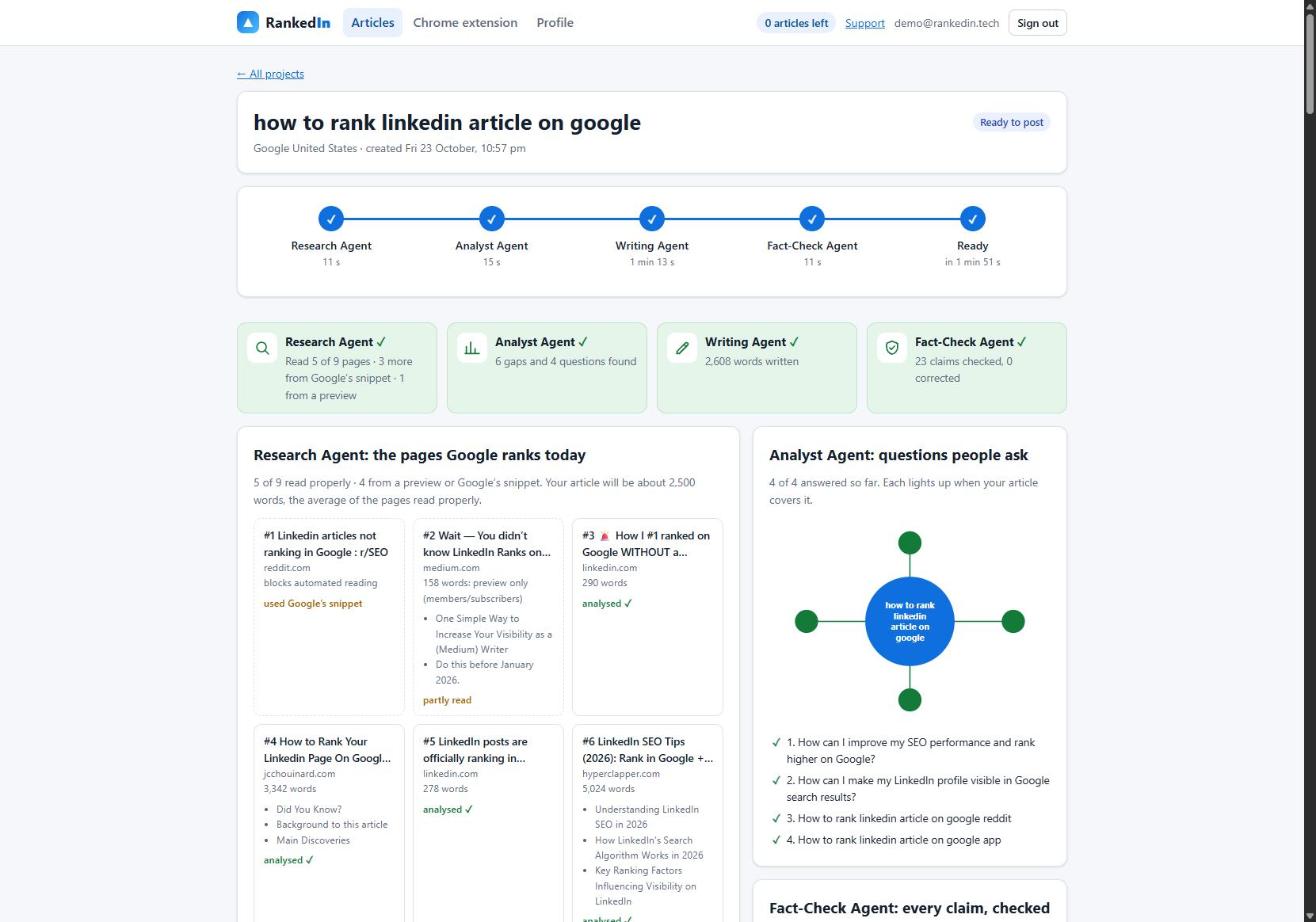
Total: 1 minute 51 seconds. Limits apply: at most 3 new articles a day per customer, to keep your LinkedIn account safe. The first article is free, and you can save up to 20 search terms in "My terms" to write later.
A Checklist for Choosing a LinkedIn Article Generator
- Research: Does it read Google's live results for your exact search term?
- Length: Does it write a full article, sized to what ranks, rather than a short post?
- Accuracy: Does it check claims, and does it flag problems it cannot fix?
- Posting: Does it handle headings, cover image and spacing in LinkedIn's editor?
- Control: Do you always click Publish yourself?
- After publishing: Does it submit for indexing, with honest status labels?
- Honesty: Does it avoid promising rankings or indexing? Nobody can promise either.
If you only need a quick feed update, a free post generator from Grammarly, Hootsuite or ContentStudio is enough. If you want to be found on Google, use a search-led article tool. For a deeper comparison of paid options, see our LinkedIn article writer buyer's guide.
Frequently asked questions
How do I create a LinkedIn article?
On LinkedIn, open the article editor from the post box, then add a title, a cover image and your text with headings. Read it through and click Publish. With RankedIn, our Chrome extension fills in the editor for you, but you still review and click Publish yourself.
Is it better to do a LinkedIn post or article?
It depends on your goal. Posts suit quick news and conversation in the feed, while articles suit full answers to questions people search on Google, because each article has its own linkedin.com/pulse address. Many people publish an article and then announce it with a short post.
Are LinkedIn articles still a thing?
Yes. In our research on 17 searches about ranking or indexing LinkedIn articles, a linkedin.com/pulse article was in Google's top 10 for 13 of them and at number 1 for 4. Most of those searches are small, and no ranking is ever guaranteed.
What is the best LinkedIn post generator?
For free, quick posts, tools like Grammarly, Hootsuite, Typegrow and ContentStudio work well, and ContentStudio says it has no usage cap or account requirement. If you want posts in your own voice, style-trained platforms such as MagicPost, RedactAI or Postiv AI learn from your past posts. For long articles meant to rank on Google, a search-led article tool is the better fit.
Can ChatGPT write my LinkedIn profile?
It can draft a headline and About section if you give it your real experience and goals. It does not know your career unless you tell it, so check every detail before using it. Edit the draft so it sounds like you.