LinkedIn Article SEO
Published · Updated · By the RankedIn team
Yes, LinkedIn articles can rank on Google. Good LinkedIn article SEO is mostly ordinary on-page work done in the right places in LinkedIn's editor: a title that matches the search, real headings, a body that answers the question, one sensible link, the article's SEO settings, and a public article that Google can index.
Rankings are never guaranteed, but the evidence says the work is worth doing, especially for small, specific searches. Below is our checklist, item by item. For each item we show what RankedIn fills in automatically and what you, the author, still check.
Do LinkedIn Articles Help With SEO? What the Evidence Shows
Most pages that rank for this term say LinkedIn has high authority and stop there. Two pieces of evidence are more useful. Search Engine Land reported that the /pulse/ section, where member articles live, ranks for more than 7 million keywords, and that linkedin.com has an Ahrefs domain rating of 98.
We also ran our own check on 23 October 2026: 17 Google searches in the United States about ranking or indexing LinkedIn articles. A linkedin.com/pulse article was in the live top 10 for 13 of the 17, and at number 1 for 4 of them. All four number 1 spots were held by the same article, "Does Google index LinkedIn articles?" by Look Left Marketing.
The honest limit: most of those searches are small, about 10 a month. That is the realistic target for a LinkedIn article. Aim for specific long-tail terms where the top 10 is thin, not broad, competitive terms. We go deeper in our evidence-first answer to whether LinkedIn articles rank on Google.
The Checklist at a Glance: What RankedIn Fills In and What You Check
Use this as your template for every article.
- Title. RankedIn: the exact search term in Title Case. You: confirm real people type the term and the title reads naturally.
- Cover and caption. RankedIn: your cover image, or a designed title card, with the search term as the cover caption. You: check the image suits the topic.
- Headings. RankedIn: LinkedIn's own Heading and Subheading styles. You: check each heading answers a sub-question.
- Length. RankedIn: a target set from the pages that rank, kept between 1,200 and 3,000 words. You: cut anything that is padding.
- Gaps and questions. RankedIn: gaps the ranking pages miss, plus an FAQ from Google's People Also Ask. You: check the answers fit your audience.
- Facts. RankedIn: up to 25 claims checked against the research. You: check numbers and every claim about your own business.
- Link. RankedIn: one natural link to your "Link to" page. You: check the destination is right and live.
- Embedded images. You: add descriptive alt text.
- SEO title, description and tags. You: set them in the article's settings.
- Visibility. You: make sure the article is public.
- Feed post. RankedIn: fills in the announcing post after you click "Next". You: read it and click Publish.
- Indexing. RankedIn: sends the links to PetesIndexer and shows an honest status. You: watch the status.
- Checking. RankedIn: a Test Now link that opens the Google search for your term. You: decide when to revise.
Title and Search Term: Match the Exact Phrase
RankedIn makes the title the exact search term in Title Case and puts the same term in the cover caption. Our published article How to Rank a LinkedIn Article is an example: the title is simply the phrase a searcher types, capitalised.
What you check:
- Is it a real search? Look at Google's related searches for ideas. For this term they include "linkedin article seo template" and "linkedin article seo examples", which is why this post includes a checklist you can reuse.
- Does it read naturally? If the exact phrase is clumsy as a headline, a close variant that a person would happily click is better. You can still edit the title in LinkedIn's editor before you publish.
Headings and Structure: Use LinkedIn's Own Heading Styles
RankedIn fills the article using LinkedIn's own Heading and Subheading styles, so the structure is made of real headings, not bold text that only looks like a heading. Search Engine Land noted the same pattern in LinkedIn's own collaborative articles: one H1, several H2s, and a unique page title and description, all aimed at one keyword cluster.
Structure can also break in ways you do not notice. We found that line breaks between blocks of pasted HTML made LinkedIn's editor insert empty paragraphs. A 12-block article became 23 blocks, 11 of them empty. Sending compact HTML fixed it: 12 blocks stay 12. If you paste a draft from somewhere else, scroll through and delete stray empty lines.
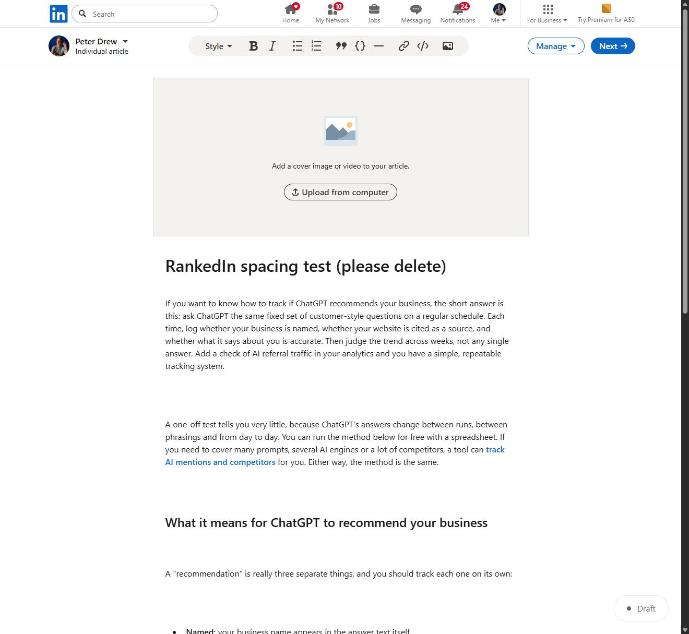
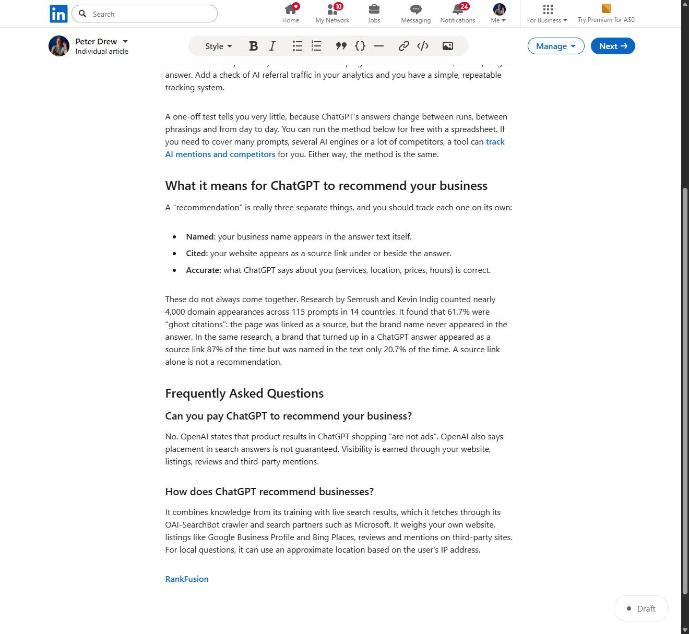
What you check: read only the headings, top to bottom. They should work as a summary of the article, each one answering a question the searcher has.
Body Copy: Length, Gaps and Questions to Answer
Advice on length conflicts. LinkedIn's own page for Pages suggests 500 to 1,000 words; distribution.ai says 500 to 2,000+. Neither is tied to your search. RankedIn's Research Agent reads Google's live top 10 for your term and sets the target from the average of the pages it read properly, kept between 1,200 and 3,000 words. For this term the properly read pages averaged about 1,023 words, so the target would sit at the 1,200-word floor. Our guide on how long a LinkedIn article should be covers this in detail.
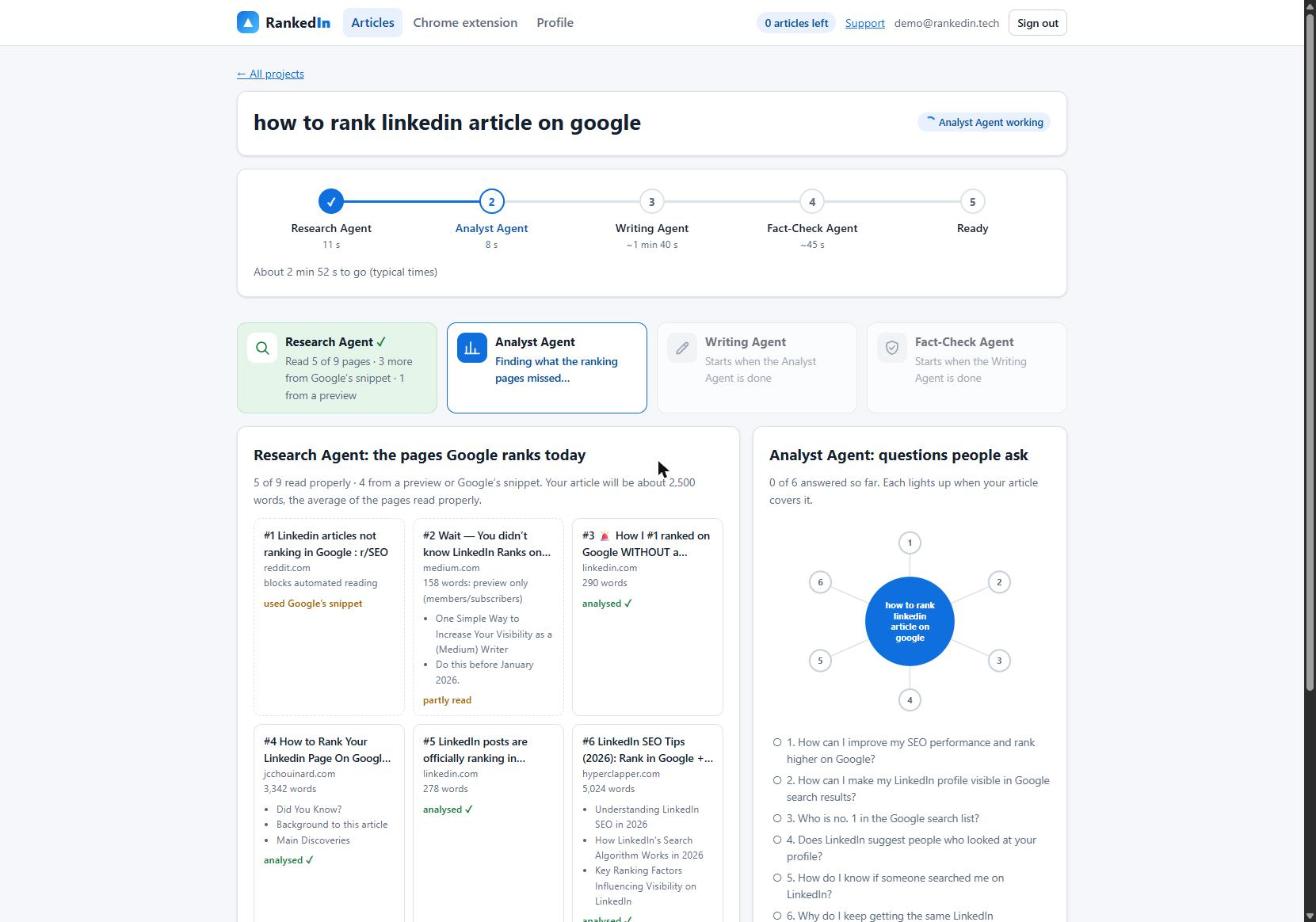
Length matters less than coverage. The Analyst Agent finds the gaps the ranking pages miss, the People Also Ask questions to answer, and an outline. The Writing Agent then builds the FAQ from those questions.
Then the facts. The Fact-Check Agent lists up to 25 factual claims, checks each against the research, applies corrections only (it never rewrites the article) and re-checks the corrected sentences. Anything still wrong and important marks the article "Needs review" instead of "Ready". In one real run it checked 23 claims and corrected 0. It checks against the research, not against your business, so you still read every number, price and claim about your company yourself.
Links, Images and Cover: The Small Items People Skip
RankedIn adds one natural link to the "Link to" page you chose (your website by default). One link is deliberate: distribution.ai advises linking to your own site sparingly to avoid looking spammy. What you check: that the link goes to the right page and that the page works.
For the cover, RankedIn uses the image you upload or designs a title card. If you embed extra images in the body, give them descriptive alt text. It helps readers who use screen readers and gives search engines more context.
If you publish several articles on one topic, link them to each other as well: our guide to how to rank multiple LinkedIn articles shows a simple pattern for those links.
Settings and Promotion: SEO Title, Description, Tags and the Feed Post
Of all the ranking pages, only LinkedIn's own publishing page says where the SEO fields are: you can increase discovery off LinkedIn by setting SEO titles, descriptions and tags in your article's settings. Before you publish:
- SEO title: keep it close to the search term.
- Description: one sentence that promises what the reader gets.
- Tags: a few topics the article is genuinely about.
- Visibility: make sure the article is public. If search engines cannot see it, they cannot index it.
After you click "Next", RankedIn's Chrome extension fills in the feed post that announces the article. LinkedIn suggests adding relevant hashtags to that post and ending with a question or other call to action. You read everything and click Publish yourself; RankedIn never publishes for you. Then X opens with a post ready, linking to the article, and you click Post.
Getting It Indexed and Checking That It Worked
After publishing, the LinkedIn article link and the X post link are sent together to PetesIndexer, the indexing service RankedIn uses. RankedIn shows a link as indexed only when PetesIndexer confirms Google has indexed it; until then it says "Submitted, indexing in progress". A link that is not indexed is sent again once automatically. Indexing is not guaranteed. Our guide to how Google indexes LinkedIn articles explains how to check yours.
Our own articles are a live example. We published these four with RankedIn on 23 October 2026, and on that day all four were submitted to PetesIndexer, indexing in progress, and not yet in Google's top 100, which is expected this early:
- The Best AI Overviews MCP
- AI Overviews MCP for ChatGPT
- How To Reverse Engineer AI Overviews
- How to Rank a LinkedIn Article
Checking Your Position for 30 Days
Check where the article shows up every few days for the first month. To see where it shows up, use the Test Now link next to the project in RankedIn: it opens that exact Google search in the project’s country. Read it like this:
- Not in the top 100 yet: normal at the start, especially while indexing is still in progress.
- Indexed and appearing: watch the trend over days, not a single day's number.
- Indexed but stuck low: search the term again and compare with the current top 10. Look for a missing sub-question, a weak heading or a title that does not match the phrase, and revise.
Limits to plan around: at most 3 new articles a day per customer, to keep your LinkedIn account safe; the first article is free; and you can save up to 20 search terms in "My terms" to write about later.
Frequently asked questions
Are LinkedIn articles good for SEO?
They can be. LinkedIn's /pulse/ section ranks for more than 7 million keywords, and in our check of 17 searches a linkedin.com/pulse article was in the top 10 for 13 of them. The realistic targets are small, specific searches, and rankings are never guaranteed.
What is a LinkedIn Pulse article?
LinkedIn articles were originally introduced as LinkedIn Pulse, and published articles still live at linkedin.com/pulse/ addresses. Any LinkedIn member can publish one. It is the long-form format, separate from short feed posts.
What is the difference between LinkedIn posts and articles?
A post is a short update in the feed. An article is long-form content with its own page, headings, a cover image and SEO settings for title, description and tags, which gives it more on-page SEO options than a short post. Most people announce an article with a short post that links to it.
Is there a LinkedIn article SEO template?
Use the checklist in this post as your template: exact-phrase title, real headings, length set by the pages that rank, one natural link, alt text on images, SEO title, description and tags, public visibility, then indexing and tracking. Run through it before every Publish click.
What is a LinkedIn article series?
A series of recurring articles on one topic is a LinkedIn Newsletter. Subscribers are notified each time a new edition is published. According to LinkedIn, only qualified Pages and creators can create a Newsletter.
Where can I find LinkedIn article SEO examples?
Search Google for a specific long-tail question in your field and look for linkedin.com/pulse results in the top 10. Our four articles linked above are examples built with this checklist, published on 23 October 2026 and still indexing at the time of writing.